


As we’ve seen in the last post, we have a list of users and their filter names as they exist in Planning. Continuing on, let’s take a look at what the documentation tells us about filters.
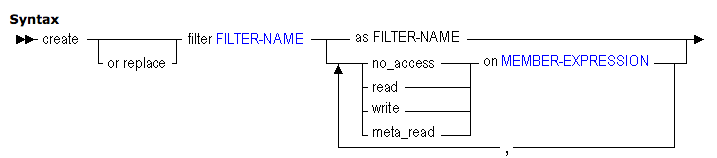
It’s not evident at first glance, the importance of the section, “as FILTER-NAME”. If you dig one step deeper, we find that the filter-name object needs to be follow the syntax, “application_name.database_name.filter_name”.
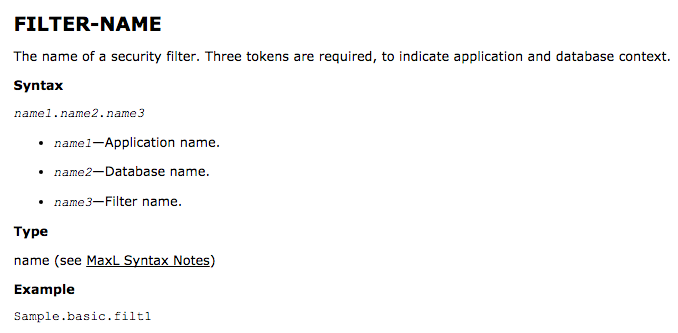
The part above, is what helps us in copying filters from one application to another. The pseudo-code MaxL required to do this might look like:
create or replace filter TargetApplication.TargetDatabase.FilterName as PlanningApplication.PlanningDatabase.FilterName;
The next step is to extract the list above to a file by calling SQLPlus (yes, this one’s on an Oracle database, not SQL Server).
:: Connect to the Planning repository to get filters
CMD /C sqlplus -S planapp/password@UNLKORA:1531/UNLK @"%HOMEDIR%\Definitions\Ext_Filters.sql" > "%OUTPUTDIR%\FilterList.txt"
The contents of “Ext_Filters.sql” looks like:
set heading off; 		-- turn off headings
set feedback off;		-- turns off items like “no of records” from the file
set pages 0;			-- suppresses page breaks, titles etc.
select  chr(39)||
        n.object_name ||
        chr(39) ||
        ',''f' ||
        n.object_name ||
        chr(39) filterName
from hsp_users u, hsp_object n
where u.user_id = n.object_id
and u.role in (1,2,4)
order by 1;
exit;
The code above extracts the filters into a usable format.
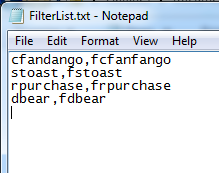
Now, let’s set up some MaxL scripts to use the output above in an efficient manner. I chose to go with 2 individual scripts, one for copying filters and one for granting the user with the filter. The former might look like (ignore the fact that I am using encryption, this will work either way):
/*
Purpose:Copy filters from Planning to Essbase.
Variables:
$1=Essbase Server
$2=Reporting Essbase Application Name
$3=Reporting Essbase DB Name
$4=Log Directory
*/
/* spool on to "$4\\Extract_Filter.log"; */
set timestamp on;

login $key 4511023520776288950029499341801077203000 $key 7604639300400586272058221904603835319641613487411156721167402358850821 on $1;

create or replace filter $2.$3.$5 as ScPLN.FINPLN.$5;

spool off;
Logout;
Exit;
And the latter might look like:
/*
Purpose:Grant filter to user.
Variables:
$1=Essbase Server
$2=Reporting Essbase Application Name
$3=Reporting Essbase DB Name
$4=Log Directory
$5=Filter Name
$6=User Name
*/
/* spool on to "$4\\Grant_Filter.log"; */
set timestamp on;

login $key 4511023520776288950029499341801077203000 $key 7604639300400586272058221904603835319641613487411156721167402358850821 on $1;

grant filter $2.$3.$6 to $5;

spool off;
Logout;
Exit;
Finally, all we need is a little batch script to put all the pieces together.
:: *******************************************************
:: ** Name: Copy_Filters.bat				**
:: ** Purpose: Copies filters from FINPLN to RPTG	**
:: ** Created By: Unlocked Cube Associates              **
:: ** Created On: 				        **
:: *******************************************************

:: Set up variables
SET HOMEDIR=D:\Admin
SET LOGDIR=%HOMEDIR%\Logs
SET ERRORDIR=%HOMEDIR%\Errors
SET MAXLDIR=%HOMEDIR%\MAXL
SET MAXL_UTILITY=D:\Oracle\Middleware\user_projects\epmsystem1\EssbaseServer\essbaseserver1\bin
SET OUTPUTDIR=%HOMEDIR%\Export\Filters
SET ESS_SERVER=UNLKESS

:: Start Filter extract process
ECHO ******************************************************* > %LOGDIR%\RPTG_Filter.log
ECHO Filter extract process started at %TIME% >> %LOGDIR%\RPTG_Filter.log
ECHO ******************************************************* >> %LOGDIR%\RPTG_Filter.log
ECHO. >> %LOGDIR%\RPTG_Filter.log

:: Connect to the Planning repository to get filters
CMD /C sqlplus -S planapp/password@UNLKORA:1531/UNLK @"%HOMEDIR%\Definitions\Ext_Filters.sql" > "%OUTPUTDIR%\FilterList.txt"

:: Parse through each item on the list, create filters and assign them to the right users
FOR /f "tokens=1,2 delims=," %%a in (%OUTPUTDIR%\FilterList.txt) DO (
    CALL %MAXL_UTILITY%\startMaxL.bat -D %MAXLDIR%\Import_Filter.maxls 1248210469,1513054427 %ESS_SERVER% RPTG RPTG %LOGDIR% %%b >> %LOGDIR%\RPTG_Filter.log
    CALL %MAXL_UTILITY%\startMaxL.bat -D %MAXLDIR%\Grant_Filter.maxls 1248210469,1513054427 %ESS_SERVER% RPTG RPTG %LOGDIR% %%a %%b >> %LOGDIR%\RPTG_Filter.log
)

:: Filter extract process ends
ECHO. >> %LOGDIR%\RPTG_Filter.log
ECHO ******************************************************* >> %LOGDIR%\RPTG_Filter.log
ECHO Filter extract process ended at %TIME% >> %LOGDIR%\RPTG_Filter.log
ECHO ******************************************************* >> %LOGDIR%\RPTG_Filter.log
The “FOR” loop above will go through each item on the “FilterList.txt” file and process them individually. And that’s it, all I had to do was run the script and my filters were copied over. Though this does provide a quick way to copy filters from 1 app to another, you do still lose the controls you might get if these users were in groups. As I mentioned earlier, this is just a little POC.

Merci pour le partage.